
AFK
Away From Keyboard
Hold ⌘G (or optionally Fn), speak, and the transcript pastes at the caret. A quiet macOS menu-bar app — bring your own keys.
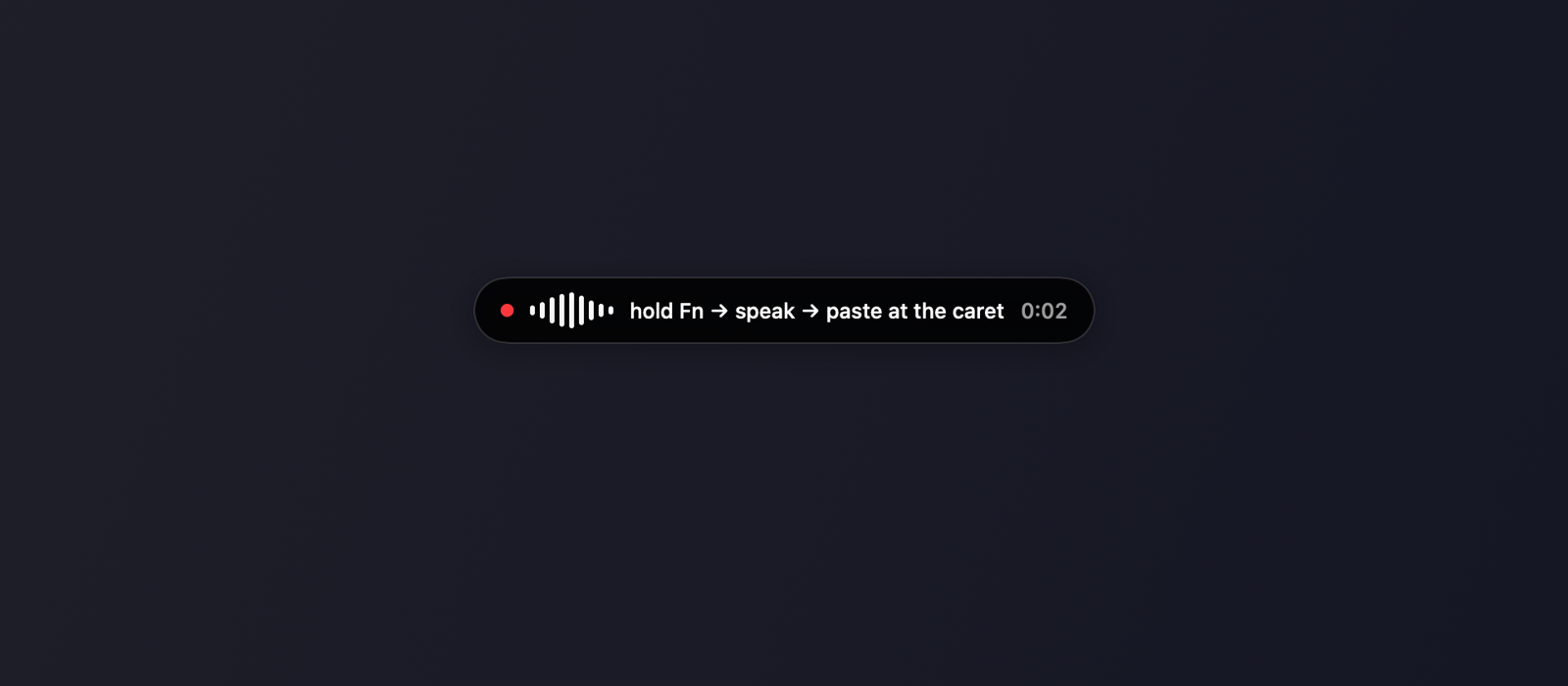
Live transcript pill while you hold the shortcut — release to paste.
Demo video coming soon — stills below until then.
How it works
Hold
Press and hold ⌘G (default; or Fn / a custom shortcut). The menu-bar icon lights up and the listening pill appears.
Speak
Your mic streams to the speech-to-text provider you chose. Live text shows in the pill when the provider supports streaming.
Paste
Release — the transcript pastes at the caret. Optional polish strips fillers without rewriting what you said.
Features
Bring your own keys
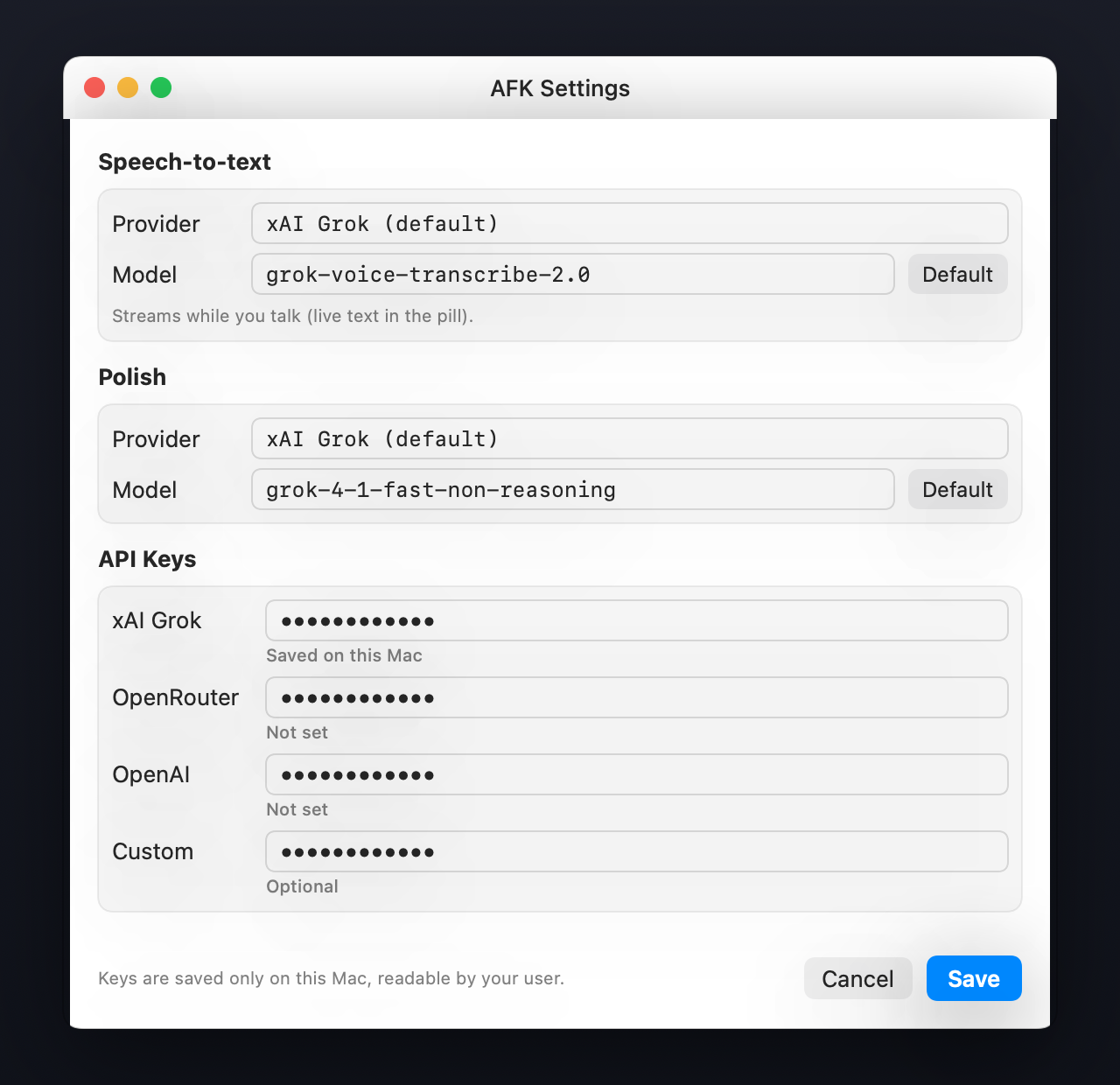
xAI Grok, OpenRouter, OpenAI, Local Whisper, Ollama, or a custom OpenAI-compatible server. Keys stay on your Mac.
Privacy paths
Fully local with Whisper + Ollama, or your own cloud keys. Nothing is bundled into the app binary.
Menu bar native
Lives quietly in the menu bar. Hold-to-talk or hands-free. Vocabulary, history, and shortcuts when you need them.
Open source MIT
Read the code, build from source, or grab a notarized DMG. Contributions welcome.
Screenshots


Get an API key
BYOK — paste a key in Settings (⌘,), or set an env var when you launch from a shell. Start with xAI Console for the default Grok voice model, or use OpenAI / OpenRouter / local Whisper.
Step-by-step for each provider: README → API keys tutorial.
Permissions
Once, on a stably signed build:
- Microphone — so AFK can hear you
- Accessibility — so paste lands at the caret
Grant from the menu bar warning items, or System Settings → Privacy & Security. The Release DMG is Developer ID signed and notarized.